Invert Image Colors Online Free
Invert image colors online free to create a negative effect on any photo instantly. Perfect for artistic effects, accessibility testing, and creative projects. No upload to servers, no signup, 100% free.
No image selected
Why invert image colors online
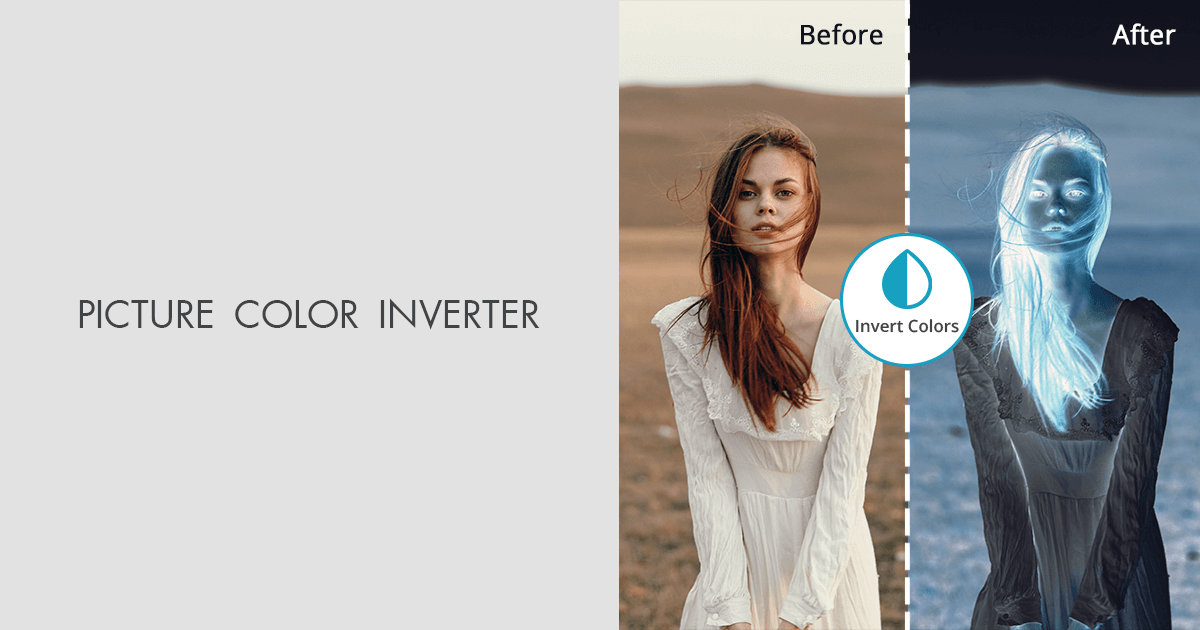
Inverting image colors creates a negative effect where every color in the photo is replaced by its opposite on the color spectrum — black becomes white, white becomes black, red becomes cyan, blue becomes yellow, and so on. This creates a striking visual effect that looks completely different from the original photo while preserving all the detail and structure of the original image.
Color inversion has both creative and practical uses. Creatively, inverted images have a distinctive artistic quality that works well for photography projects, graphic design, and social media content. Practically, inverting colors is commonly used for accessibility testing — checking how a design looks with inverted colors helps identify contrast issues and ensures content is readable in dark mode or high-contrast display settings.
What happens when you invert image colors here
Unlike tools that upload your photo to a server, Firaa inverts your image colors entirely inside your browser. Your photo never leaves your device — no upload, no server, complete privacy. The inversion is applied instantly using your browser’s canvas engine, with no wait time.
The tool applies a true mathematical color inversion — each pixel’s red, green, and blue values are subtracted from 255, producing the exact opposite color for every pixel in the image simultaneously.
When you need to invert image colors
Creative photography and art projects — Inverted photos have a distinctive negative film aesthetic that can be striking and unexpected. Many photographers and visual artists use color inversion as a creative technique to present familiar subjects in an unfamiliar way.
Graphic design and dark mode testing — Web designers and UI/UX designers use color inversion to test how their designs look in dark mode or with inverted display settings, which some users enable for accessibility or personal preference.
Accessibility testing — Inverting the colors of a screenshot or design mockup helps identify whether text and UI elements have sufficient contrast when colors are reversed, which is important for users who use high-contrast or inverted display modes.
Social media and content creation — Inverted images stand out in social media feeds precisely because they look so different from standard photos. A well-chosen image with inverted colors can create a striking visual effect for Instagram posts, Twitter headers, or other social media content.
Printing negatives — Photographers sometimes need a digital negative version of an image for certain printing processes or for creating cyanotype or other alternative photographic prints where the image needs to be inverted before exposure.
How to invert image colors — step by step
Upload your image by clicking the upload button above. This tool to invert image colors works directly in your browser with no software installation needed. The tool accepts JPG, JPEG, PNG, and WebP formats.
Click Invert Image Colors. Your browser applies the color inversion instantly and displays a preview of the inverted image along with a download button.
Download your inverted image. The result is a JPG file with all colors replaced by their exact opposites, ready to use in any creative or practical project.
Frequently asked questions about inverting image colors
Can I invert the colors back to the original?
Yes. Inverting a color-inverted image returns it to the original colors, since inversion is a reversible operation. Simply upload the inverted image and click Invert Image Colors again to restore the original colors.
Will inverting colors affect the image resolution or quality?
No. Color inversion only changes the color values of each pixel — it does not affect the resolution, sharpness, or file dimensions of the image in any way.
Is my photo safe — does Firaa upload it to servers?
No. When you invert image colors using Firaa, your photo is processed entirely inside your browser. Nothing is uploaded to any server at any point.
Can I invert the colors of a PNG image?
Yes. Upload any JPG, PNG, or WebP image and the tool will invert its colors. The output will be a JPG file.
How is Firaa different from other color inversion tools?
Most online photo editors require an account or upload your photo to their servers. Firaa inverts image colors entirely in your browser — no account, no upload, and completely free.