Adjust Brightness and Contrast Online Free
Adjust brightness and contrast of any photo online free. Fix dark, overexposed, or washed-out images instantly with live preview sliders. No upload to servers, no signup, 100% free.
No image selected
Why adjust brightness and contrast online
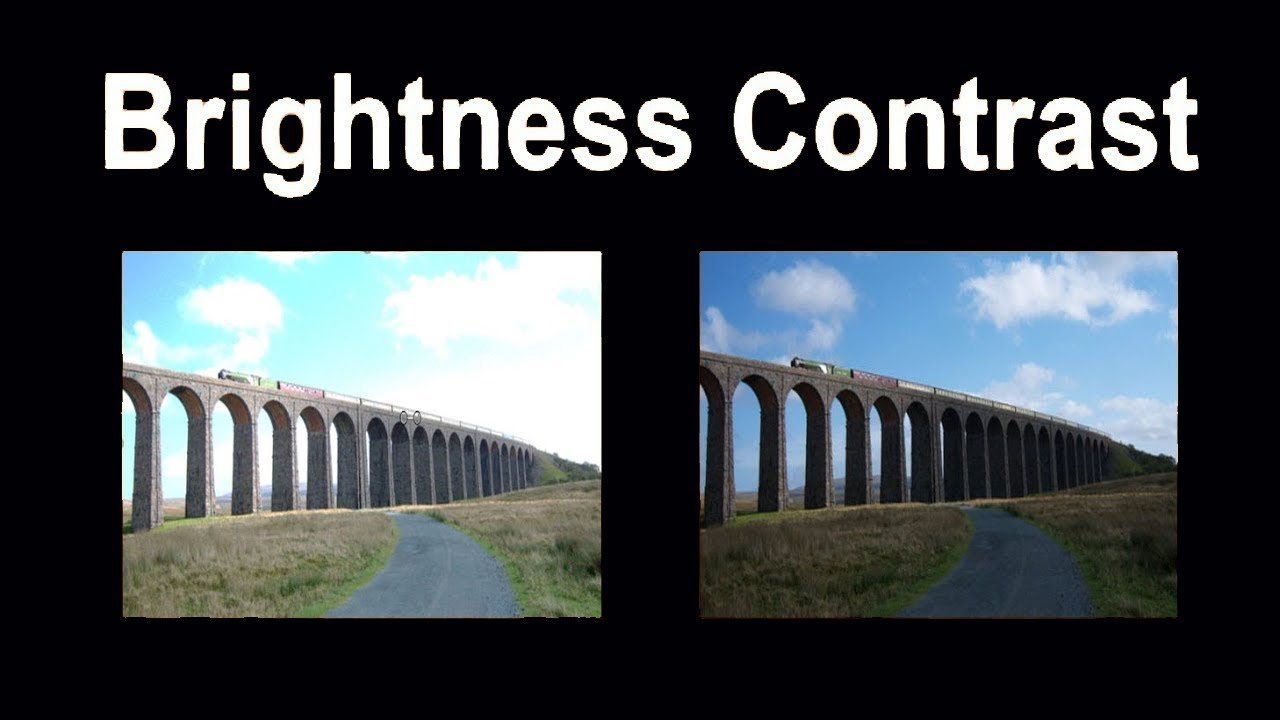
Poorly lit photos are one of the most common problems in everyday photography. Photos taken indoors, in low light, or with a back-lit subject often come out too dark, making faces and details hard to see. On the other hand, photos taken in bright sunlight or with flash can come out overexposed — washed out and lacking detail in the bright areas. Adjusting brightness and contrast online lets you correct both problems quickly without any photo editing software.
Brightness and contrast adjustment is one of the fundamental photo editing operations, used by photographers, bloggers, social media managers, and everyday users worldwide to make their photos look their best before sharing or publishing.
What each adjustment does
Brightness — Increases or decreases the overall lightness of every pixel in the image. Moving brightness up makes the whole image lighter, which can reveal detail in dark shadows. Moving it down makes the image darker, which can help with overexposed photos that look too bright or washed out.
Contrast — Controls the difference between the dark and light areas of an image. Increasing contrast makes dark areas darker and light areas lighter, giving the image more depth and definition. Decreasing contrast brings the tones closer together, creating a softer, flatter look that is popular in certain photography styles.
Saturation — Controls the intensity of colors in the image. Increasing saturation makes colors more vivid and punchy. Decreasing saturation mutes the colors toward grey, which is useful for creating a subtle desaturated look or preparing an image for black and white conversion.
When you need to adjust brightness and contrast
Fixing dark indoor photos — Photos taken indoors without good lighting often come out too dark, especially on smartphone cameras that struggle in low light. Increasing brightness and contrast can significantly improve the appearance of dark indoor photos, making them usable for social media, professional profiles, or printing.
Correcting overexposed outdoor photos — Bright sunlight can cause cameras to overexpose photos, resulting in washed-out highlights and loss of detail. Reducing brightness and increasing contrast can recover some of this detail and make the photo look more natural.
Preparing images for social media — Photos often look slightly different on screen than they do in editing — screens vary in brightness and color calibration. Adjusting brightness and contrast before uploading to Instagram, LinkedIn, or other platforms ensures your photo looks its best across different devices and screens.
Product photography — Product photos often need brightness and contrast adjustments to make the product stand out clearly against the background and show accurate colors. This is especially important for ecommerce listings where the photo is the primary way a potential buyer evaluates the product.
How to adjust brightness and contrast — step by step
Upload your image by clicking the upload button above. This brightness and contrast adjuster works directly in your browser with live preview — you can see the changes as you move the sliders. The tool accepts JPG, JPEG, PNG, and WebP formats.
Use the Brightness slider to make the image lighter or darker. Use the Contrast slider to increase or decrease the difference between light and dark areas. Use the Saturation slider to make colors more vivid or more muted. All changes update in real time so you can see the effect immediately.
Click Download Image when you’re happy with the result. If you want to start over, click Reset to return all sliders to their original position.
Frequently asked questions about brightness and contrast adjustment
Can I adjust brightness without affecting contrast?
Yes. Each slider works independently — you can move just the Brightness slider, just the Contrast slider, or just the Saturation slider, or any combination. The sliders don’t affect each other.
Will adjusting brightness reduce my image quality?
Extreme brightness or contrast adjustments can introduce some quality loss, particularly in areas that become very bright or very dark. Moderate adjustments — staying within the middle range of the sliders — preserve most of the original image quality.
Is my photo safe — does Firaa upload it to servers?
No. Your photo is processed entirely inside your browser. Nothing is uploaded to any server at any point.
Can I adjust a PNG image?
Yes. Upload any JPG, PNG, or WebP image and adjust it the same way. The output will be a JPG file.
How is Firaa different from other brightness adjusters?
Most online photo editors require an account or upload your photo to their servers. Firaa adjusts brightness and contrast entirely in your browser — no account, no upload, and completely free.