
Add Text to Image Online Free
Add text to any image online free — captions, quotes, watermarks, labels, or any custom text. Choose font size, color, and position. No upload to servers, no signup, no watermark on your output.
No image selected
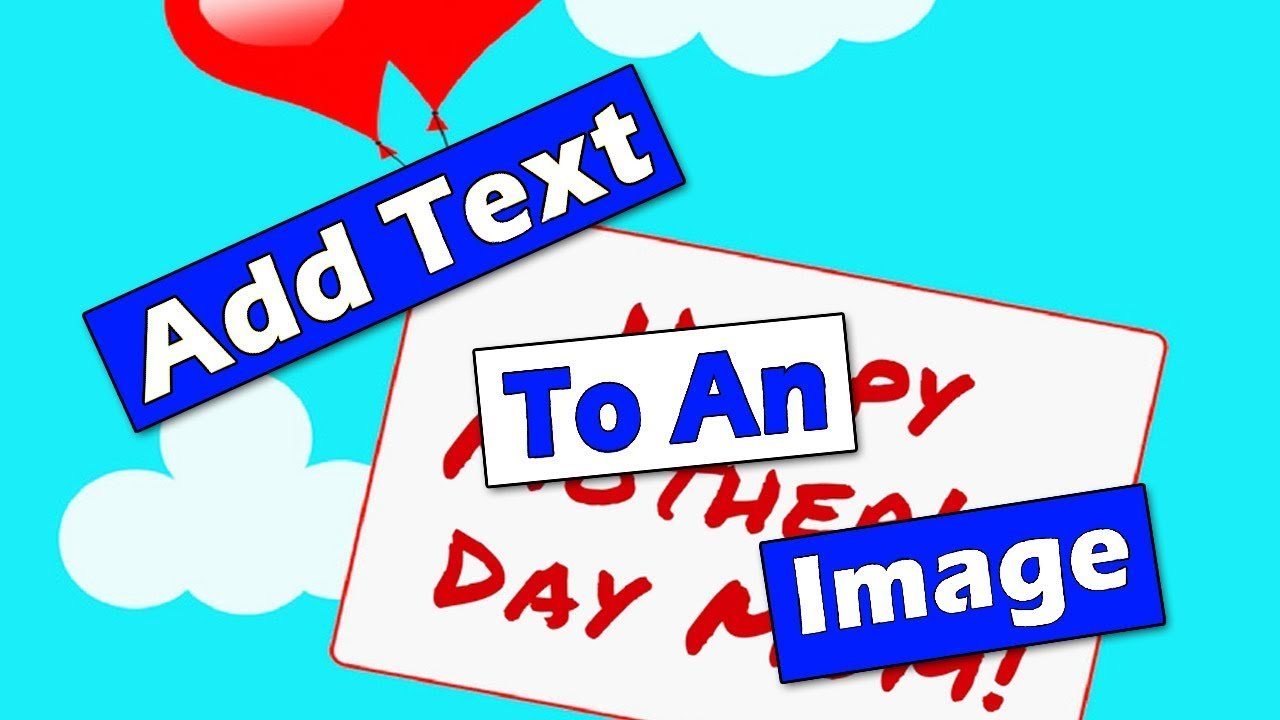
Why add text to image online
Adding text to an image is one of the most common tasks in social media content creation, graphic design, and digital marketing. Whether you need to add a caption to a photo, overlay a quote on a background image, add a watermark to protect your work, label a diagram, or create a simple graphic with text for Instagram or LinkedIn — this tool lets you do it instantly without any design software.
Most professional tools for adding text to images, including Adobe Photoshop, Canva, and Adobe Express, require either expensive software, a monthly subscription, or an account. Firaa lets you add text to image online completely free, with no account, no watermark on your output, and no upload of your photo to any server.
What you can create with this tool
Social media graphics — Add inspirational quotes, captions, event details, or promotional text to photos for Instagram posts, LinkedIn updates, Facebook posts, and Twitter graphics. Text overlays on images consistently generate higher engagement than plain text posts on most social media platforms.
Watermarks — Add your name, website URL, or brand name as a text watermark to photos before sharing them online. This protects your work by making it clear who created the image and discourages unauthorised use or reposting without credit.
Photo captions and labels — Add descriptive text, labels, or annotations to photos used in blog posts, articles, presentations, or educational materials. Labeled photos are more informative and easier for readers to understand.
Event and announcement graphics — Add event names, dates, venues, or promotional text to background photos to create simple announcement graphics for social media, email newsletters, or websites.
Product and business graphics — Add product names, prices, website URLs, or promotional offers to product photos for use in social media advertising or website banners.
How to add text to image — step by step
Upload your image by clicking the upload button above. This tool to add text to image works directly in your browser with no software installation needed. The tool accepts JPG, JPEG, PNG, and WebP formats.
Type your text in the text field. Choose your font size, text color, position (top, center, or bottom), and whether to apply bold formatting, a shadow, or an outline to make the text stand out against the image.
Click Preview to see how the text looks on your image before downloading. Adjust the settings if needed, then click Add Text and Download to save the finished image.
Tips for adding text to photos effectively
White text with a shadow or outline works well on most photos because it’s readable against both light and dark backgrounds. If your photo has a very light or very white area where you want to place text, switch to black text or use the outline option for better contrast.
For a clean, professional look, use a font size that’s proportional to the image — too small and the text is hard to read, too large and it dominates the photo. Medium or Large size works well for most social media images.
Frequently asked questions about adding text to images
Will there be a watermark on my downloaded image?
No. Unlike many free online tools that add their own watermark to your output, Firaa adds only the text you specify. There is no Firaa watermark or branding added to your downloaded image.
Can I add text to a PNG image?
Yes. Upload any JPG, PNG, or WebP image and add text the same way. The output will be a JPG file.
Can I add multiple lines of text?
Yes. Press Enter in the text field to add multiple lines. Long single lines of text will also wrap automatically to fit within the image width.
Is my photo safe — does Firaa upload it to servers?
No. When you add text to image using Firaa, your photo is processed entirely inside your browser. Nothing is uploaded to any server at any point.
Can I change the font?
Currently the tool uses a clean sans-serif font that works well for most uses. Font selection will be added in a future update.
How is Firaa different from Canva for adding text to images?
Canva requires creating an account and uploads your images to their servers. Firaa lets you add text to image entirely in your browser — no account, no upload, no subscription, and completely free with no watermark.